Announcing our $950 million ceiling award to advance the Advanced Battle Management System (ABMS) for the US Air Force.
Learn More

Formatting Messages Using Markdown
Markdown makes it easy to format messages. Type a message as you normally would, then use the following syntax options to format your message a specific way.
Text Style
You can use either _ or * around a word to make it italic. Use two to make a word bold.
Code Block
Create a code block by indenting each line by four spaces, or by placing ``` on the line above and below your code.
Example:
```
Code block
```
Renders as:
Code block
Syntax Highlighting
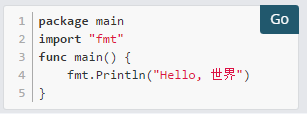
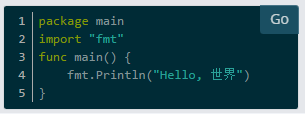
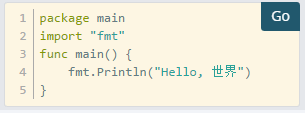
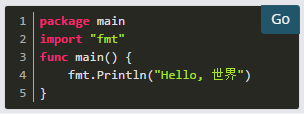
To add syntax highlighting, type the language to be highlighted after the ``` at the beginning of the code block. Polysentry also offers four different code themes (GitHub, Solarized Dark, Solarized Light, Monokai) that can be changed in Account Settings > Display > Theme > Custom Theme > Center Channel Styles > Code Theme.
Supported languages are: applescript, as, atom, bas, bash, boot, _coffee, c++, c, cake, cc, cl2, clj, cljc, cljs, cljs.hl, cljscm, cljx, cjsx, cson, coffee, cpp, cs, csharp, css, d, dart, dfm, di, delphi, diff, django, docker, dockerfile, dpr, erl, fortran, freepascal, fs, fsharp, gcode, gemspec, go, groovy, gyp, h++, h, handlebars, hbs, hic, hpp, html, html.handlebars, html.hbs, hs, hx, iced, irb, java, jinja, jl, js, json, jsp, jsx, kt, ktm, kts, latexcode, lazarus, less, lfm, lisp, lpr, lua, m, mak, matlab, md, mk, mkd, mkdown, ml, mm, nc, objc, obj-c, osascript, pas, pascal, perl, pgsql, php, php3, php4, php5, php6, pl, plist, podspec, postgres, postgresql, ps, ps1, pp, py, r, rb, rs, rss, ruby, scala, scm, scpt, scss, sh, sld, st, styl, sql, swift, tex, texcode, thor, ts, tsx, v, vb, vbnet, vbs, veo, xhtml, xml, xsl, yaml, zsh.
Example:
```goAA
package main
import "fmt"
func main() {
fmt.Println("Hello, 世界")
}
```
Renders as:
GitHub Theme
Solarized Dark Theme
Solarized Light Theme
Monokai Theme
In-line Code
Create in-line monospaced font by surrounding it with backticks.
`monospace`
Renders as: monospace
Links
Create labeled links by putting the desired text in square brackets and the associated link in normal brackets.
[Check out Polysentry!](https://polysentry.com/about-us)
Renders as: Check out PolySentry!
In-line Images
Create in-line images using an ! followed by the alt text in square brackets and the link in normal brackets. Add hover text by placing it in quotes after the link.
Emojis
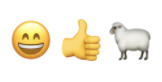
Open the emoji autocomplete by typing :. A full list of emojis can be found here. It is also possible to create your own custom emoji if the emoji you want to use doesn't exist.
:smile: :+1: :sheep:
Renders as:
Lines
Create a line by using three *, _, or -.
*** Renders as:
Block quotes
Create block quotes using >.
> block quotes renders as:

block quotes
Lists
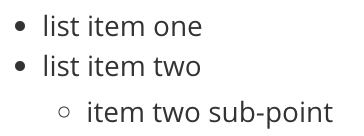
Create a list by using * or - as bullets. Indent a bullet point by adding two spaces in front of it.
* list item one
* list item two
* item two sub-point
Renders as:
Make it an ordered list by using numbers instead:
1. Item one
2. Item two
Renders as:
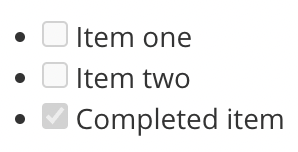
Make a task list by including square brackets:
- [ ] Item one
- [ ] Item two
- [x] Completed item
Renders as:
Tables
Create a table by placing a dashed line under the header row and separating the columns with a pipe |. (The columns don't need to line up exactly for it to work). Choose how to align table columns by including colons ":" within the header row.
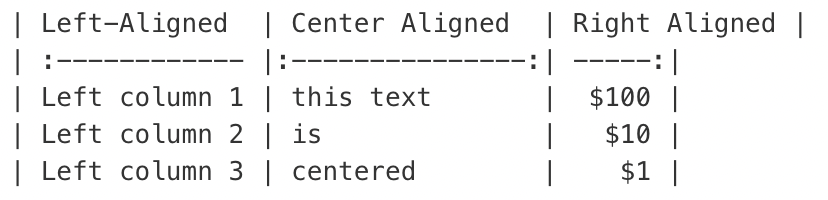
Renders as:

Headings
Make a heading by typing # and a space before your title. For smaller headings, use more #'s.
## Large Heading
### Smaller Heading
#### Even Smaller Heading
Renders as:
Alternatively, you can underline the text using === or --- to create headings.
Large Heading
-------------
Renders as:
Large Heading


